> For the complete documentation index, see [llms.txt](https://docs.ohmautomation.io/llms.txt). Markdown versions of documentation pages are available by appending `.md` to page URLs; this page is available as [Markdown](https://docs.ohmautomation.io/en/ios/guide/lights.md).
# Lights
Instructions for controlling dimmable and RGB lights.
## Relay Lights
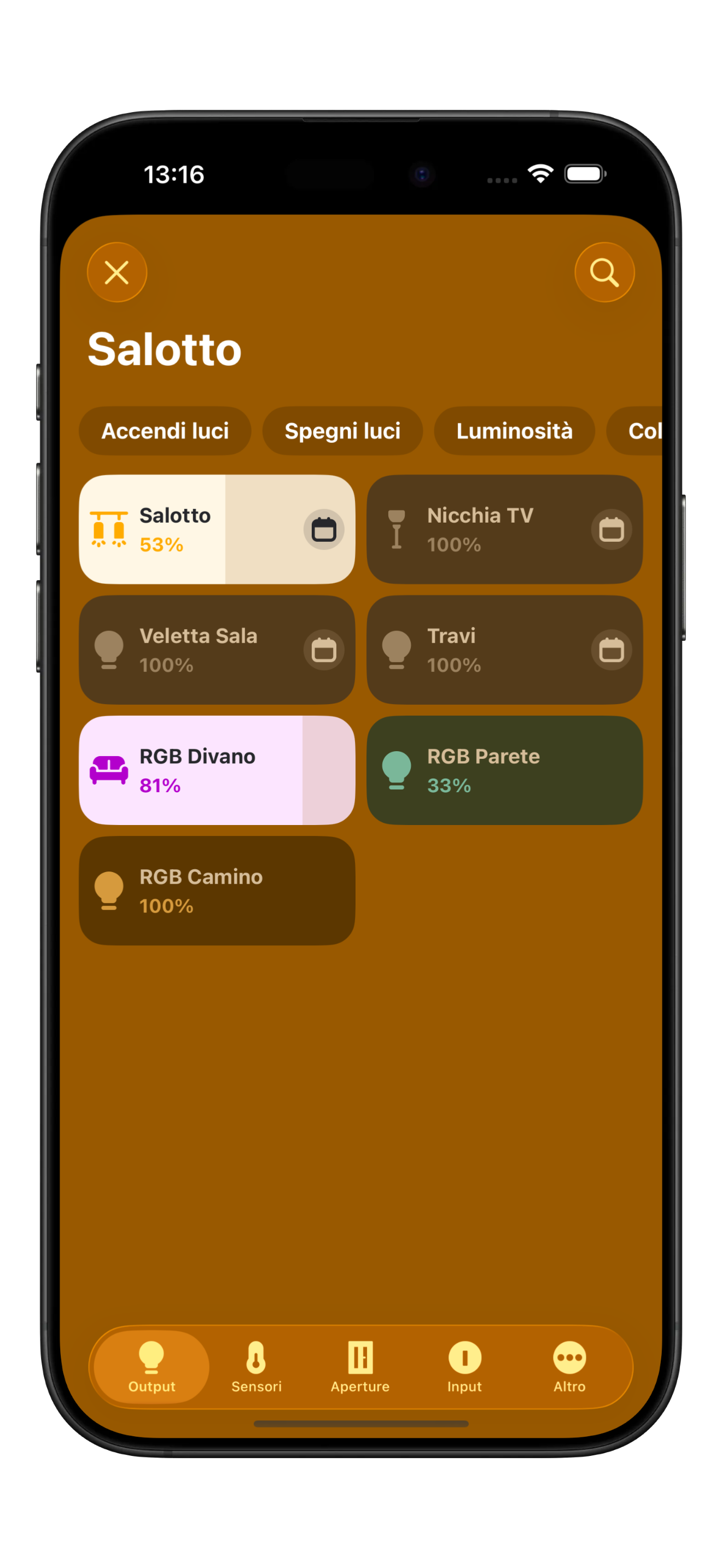
Relay lights allow simple on/off control. A single *tap* is enough to toggle their state.
{% hint style="info" %}
Brightness adjustment is only available for dimmable or RGB lights.
{% endhint %}
## Dimmable Lights
Dimmable lights are those that allow you to adjust brightness.
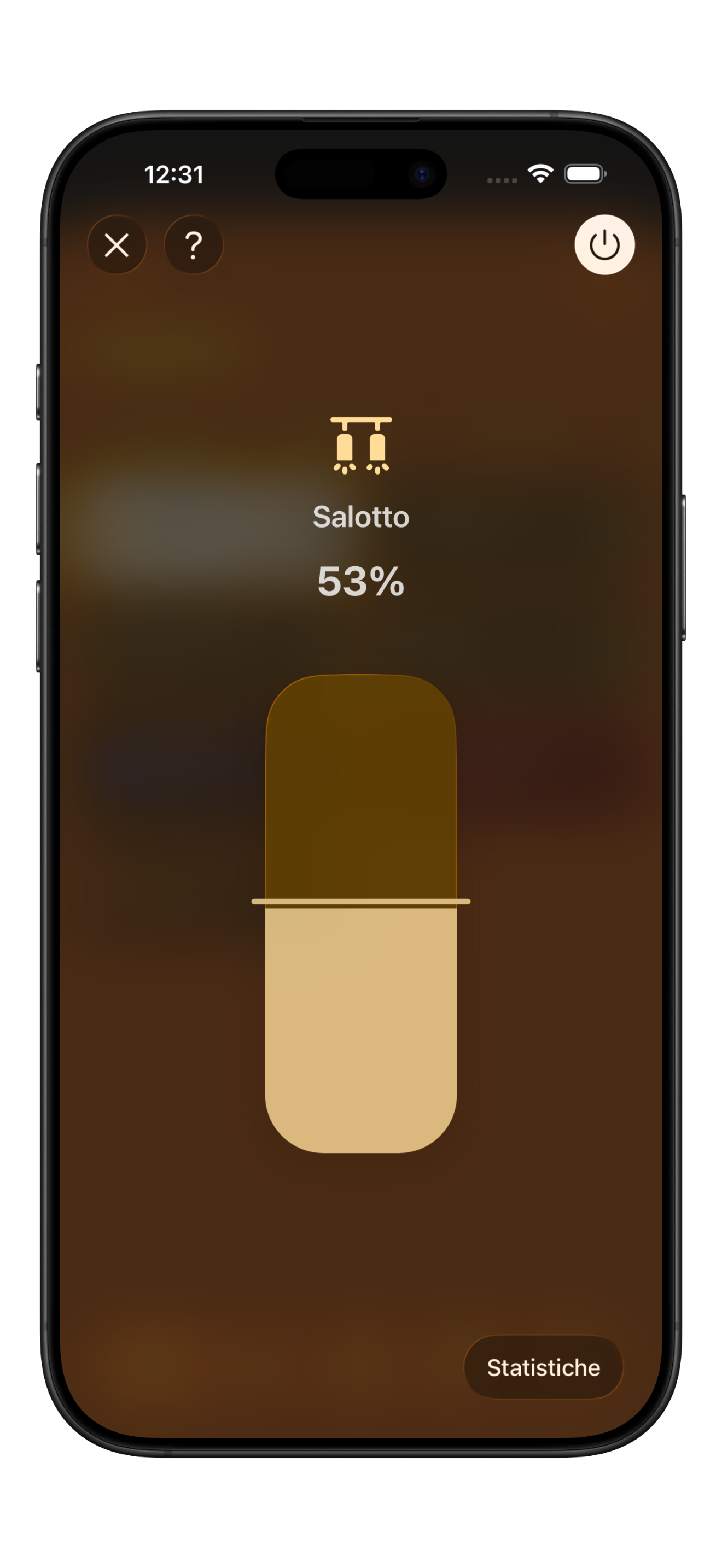
To turn dimmable lights on or off, a single *tap* is enough, just like regular lights. To set the brightness level (from 1 to 100%), press and hold the light to open the adjustment screen.
The screen below shows the slider for intensity control.
{% hint style="info" %}
The minimum brightness is 1%. To turn the light off completely, tap on it or use the *power* button in the adjustment screen. When turned back on, the light will restore its previous state.
{% endhint %}
## RGB Lights
RGB lights are those that allow you to set a color. There are also RGBW lights, which include white channel control, enabling brighter and more vivid colors.
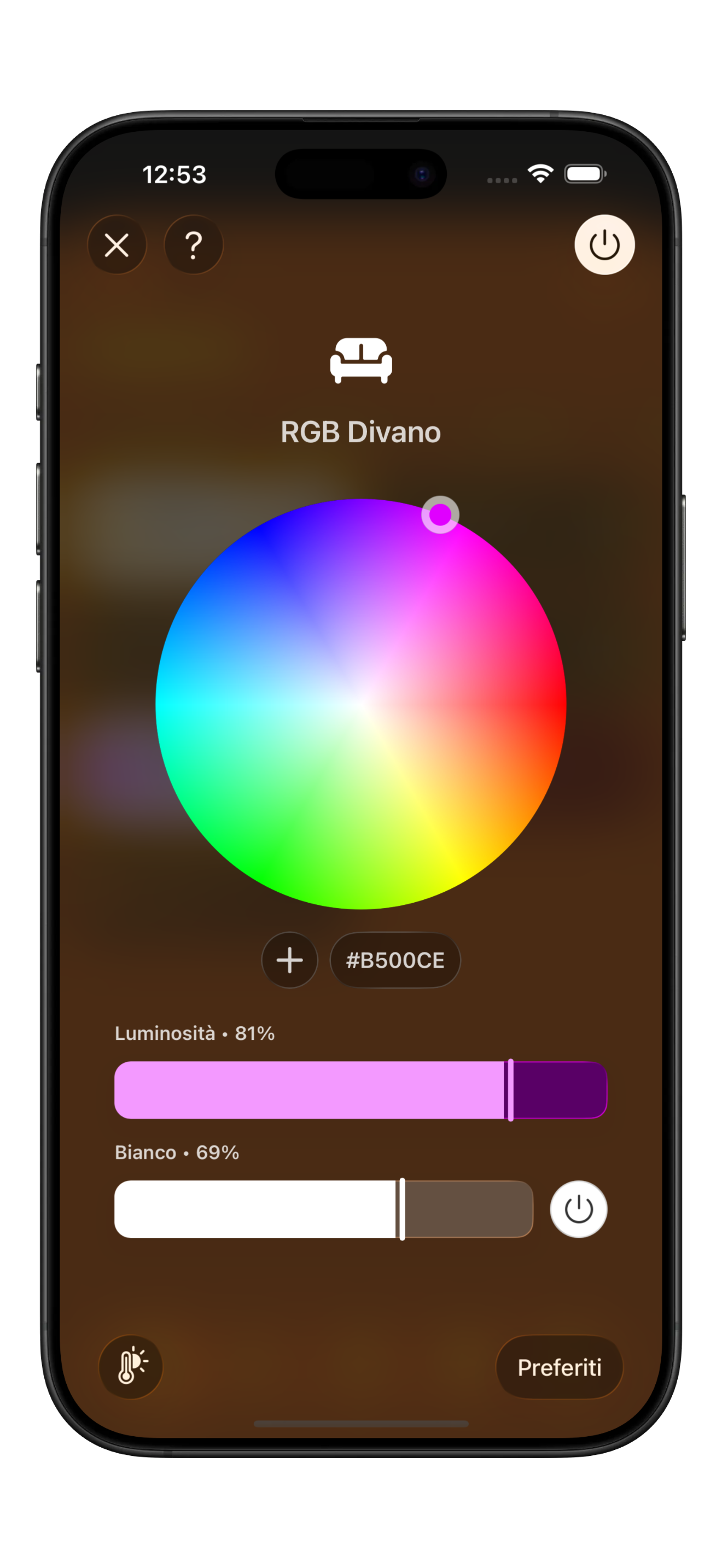
As with dimmable lights, a single *tap* turns RGB lights on or off. To adjust the color, press and hold to open the dedicated screen.
To change the color, drag the cursor on the color wheel or tap directly on the desired point. You can also adjust the color intensity using the slider below the wheel.
If the light also supports white control (RGBW), you can adjust the white channel in the dedicated section.
To set the white brightness, move the slider. To turn the white channel on or off, tap the button to the right of the slider.
### Favorite Colors
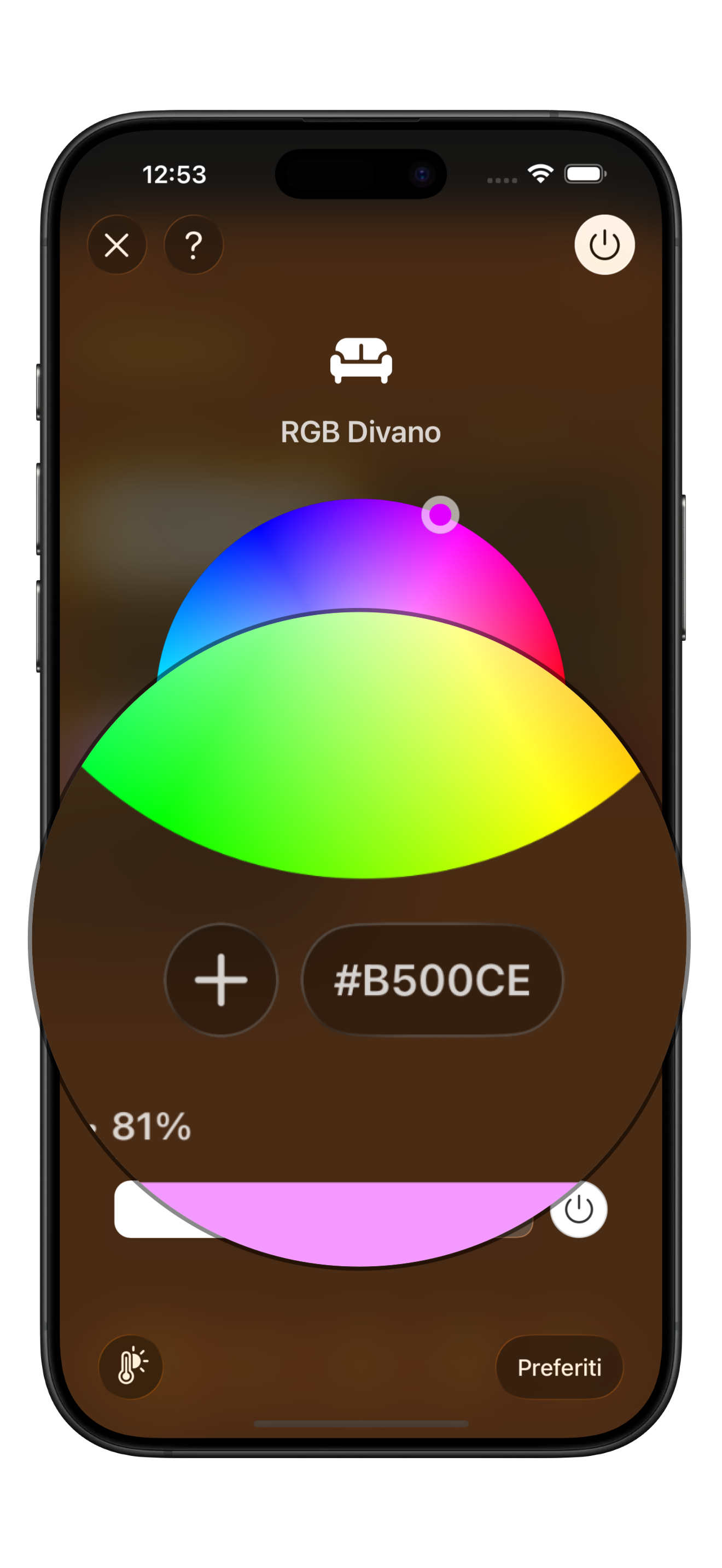
Tap the `+` button to save the currently selected color to your favorites, building a color palette for quick access.